Do a Test Call
Here's what you need to have before doing your first test call:
- An account on the PBX.IM platform - Check the step by step here: Create Your Account
- Have a phone number - free accounts get one for free
- Connect your Endpoints
Table of Contents:
How to use your credit
When you create your PBX.IM account, as a token of gratitude, we will offer you $5 credit that you can use to perform your test calls. We will also assign a phone number for you to use.
The credit is available for one month and it can be used by you on your Admin account or any Agent from your team. Read how you can invite agents here: Invite Team Members
Start a test call
Now that you have the credit and phone number assigned, here's how you can do your first test call.
- Step 1: Log in to PBX.IM Dashboard
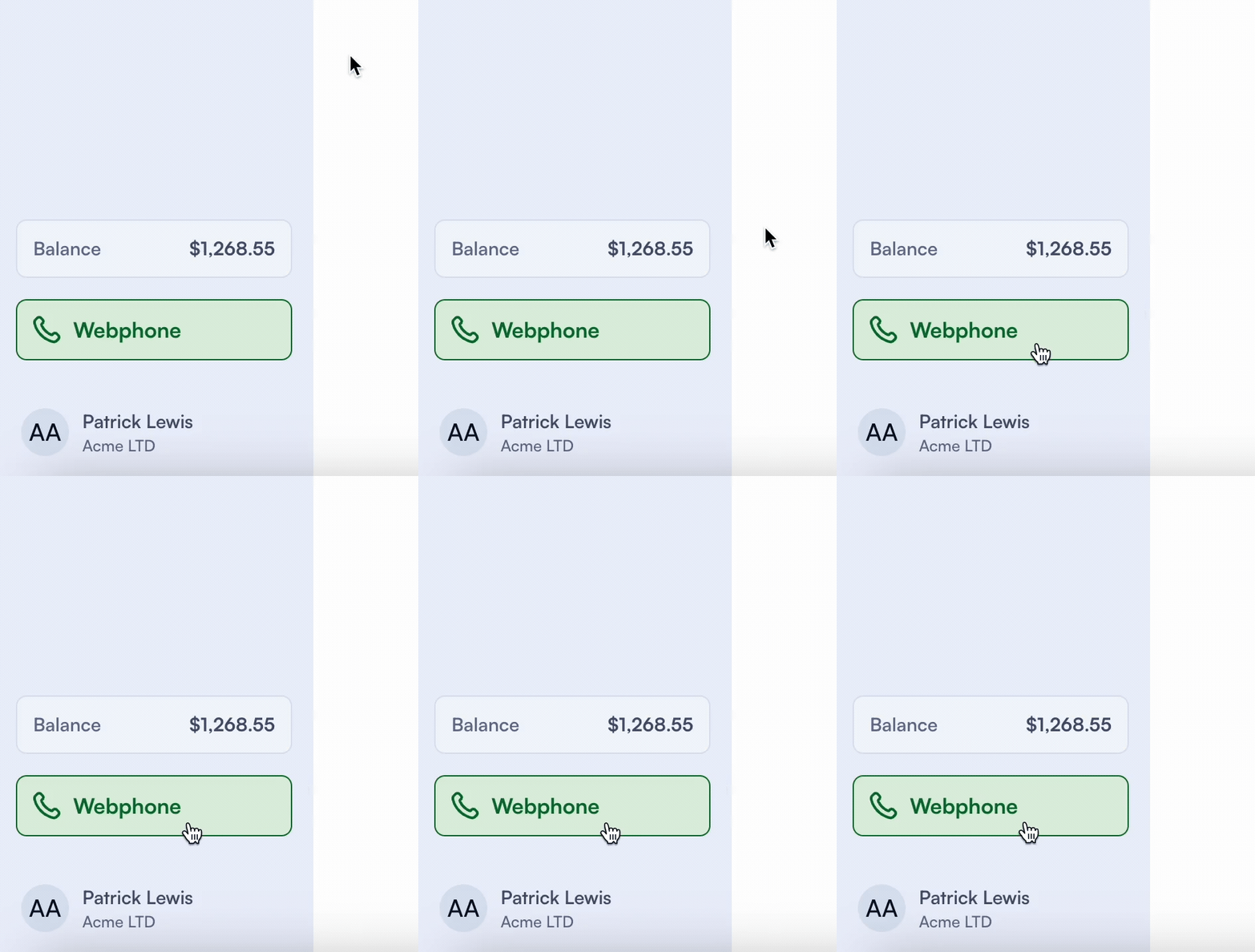
- Step 2: Check your Balance
- Step 3: Click on WebPhone
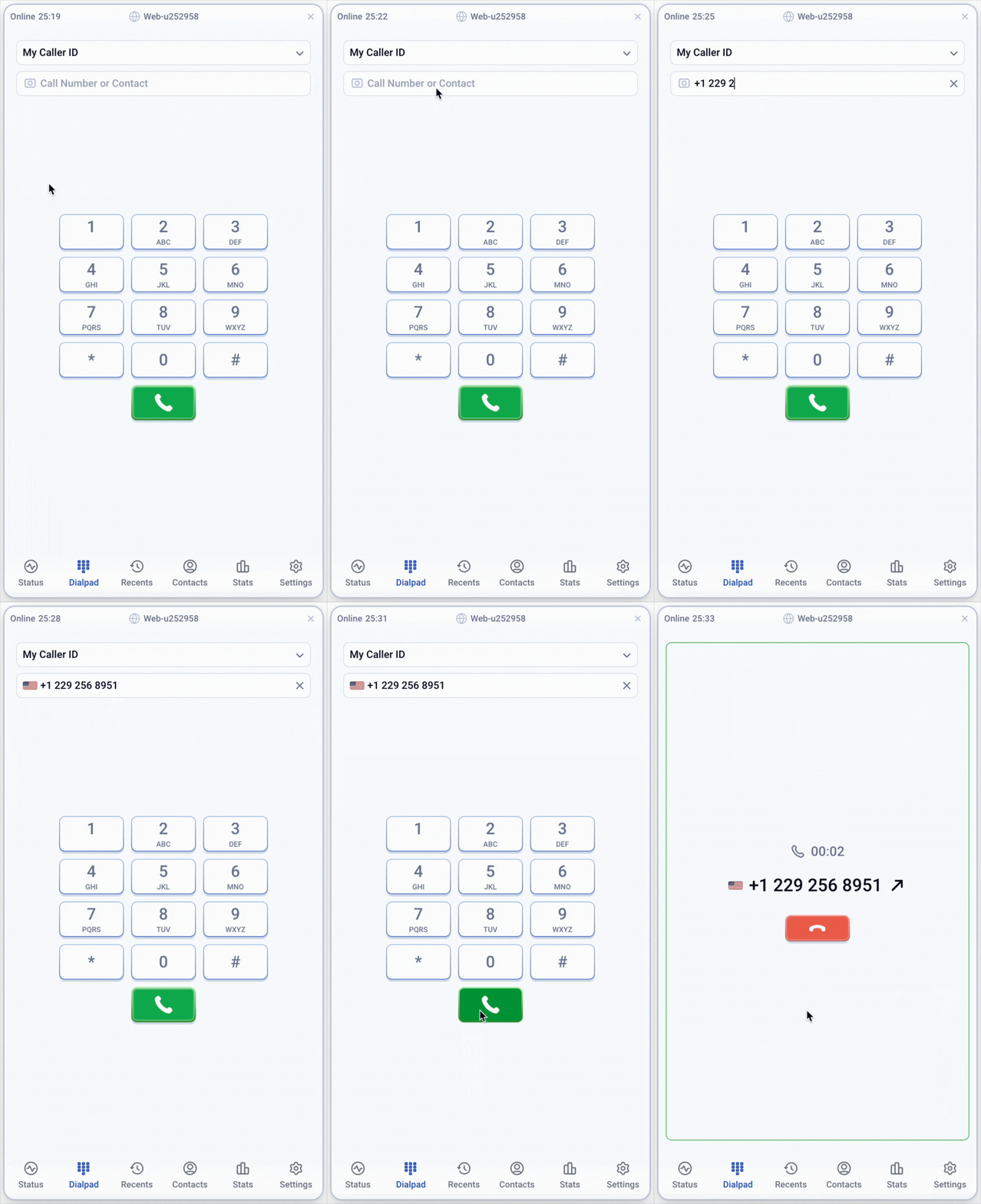
- Step 4: Type in the number
- Step 5: Your first test-call is done
Webphone overview
If you're curious about all the tabs on your Webphone, we'll dive deeper into each one and explain how to use them.
Status
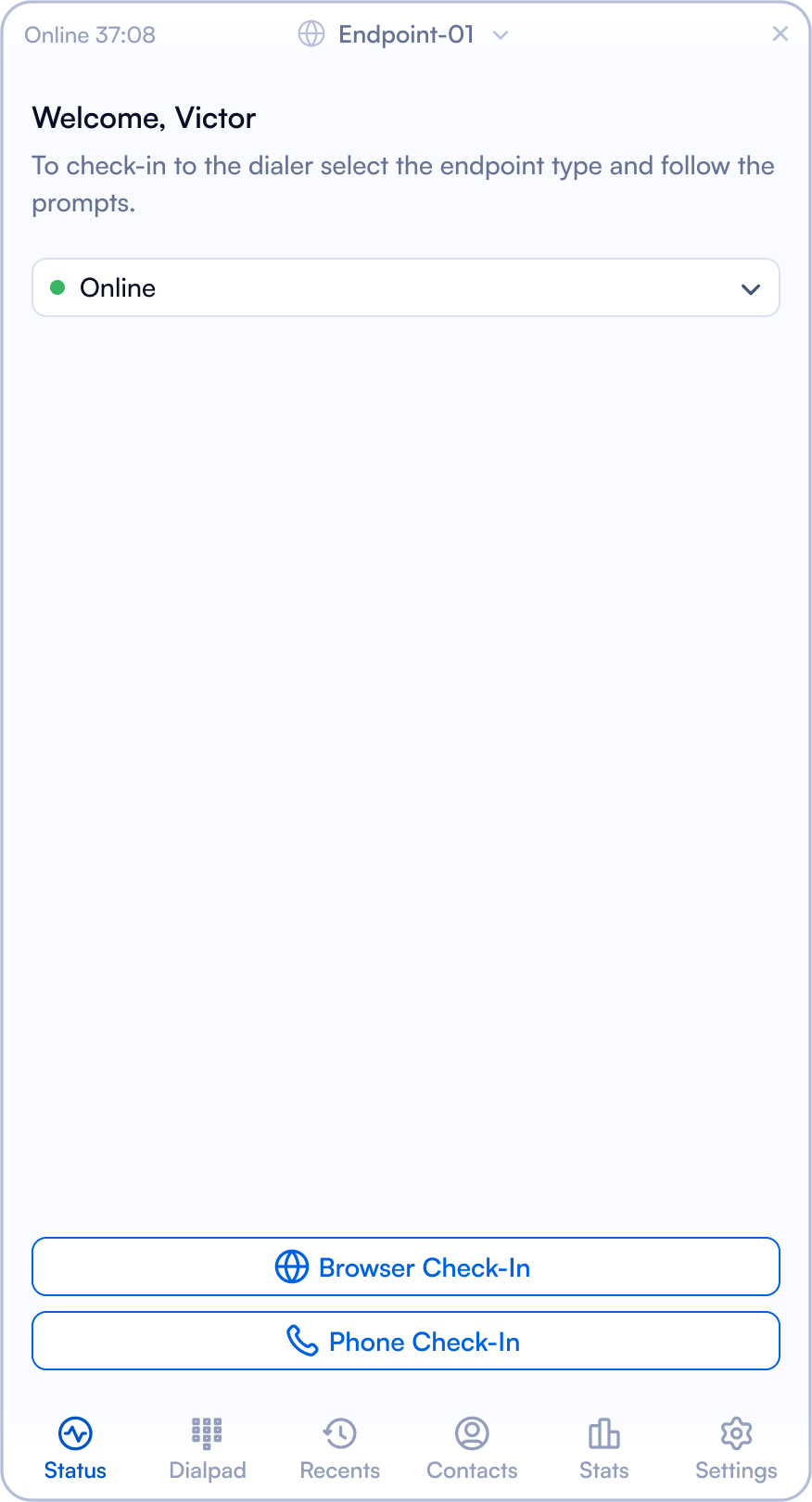
Only available to an Agent, allows you to set your status and check-in.
| Field | Explanation |
|---|---|
| Online Time | Here you can see duration for which you have been online. |
| Endpoint | Indicates the current endpoint or device ID being used. |
| Status | Set the Agent status for the current session. |
| Browser Check-In | Check in using the browser. |
| Phone Check-in | Check in using the phone. |
Dialpad
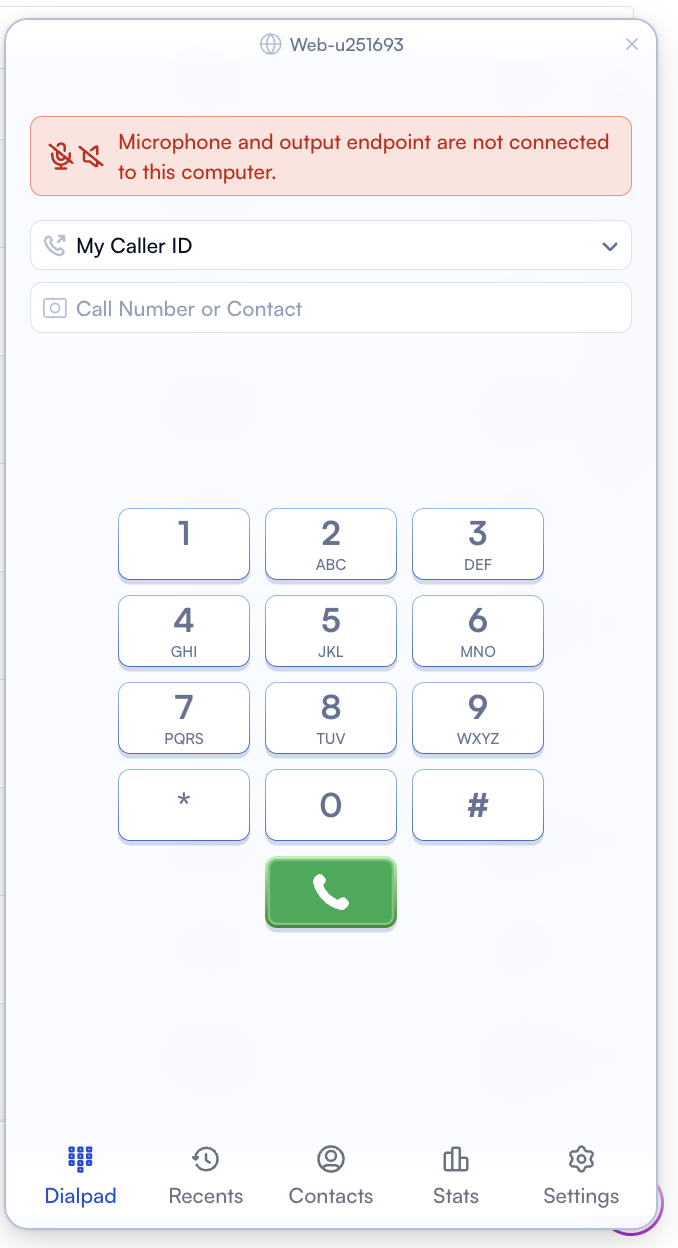
Here's where you dial in your number.
| Field | Explanation |
|---|---|
| My CallerID | From the dropdown menu, you can choose between My CallerID, Blocked, and other numbers you've used before. |
| Call Number or Contact | Enter the phone number or contact name to initiate a call. |
| Dialpad Button | Click on the Phone button to start making the call. |
Recents
Under ''Recents'' tab you will be able to have an overview about the calls history.
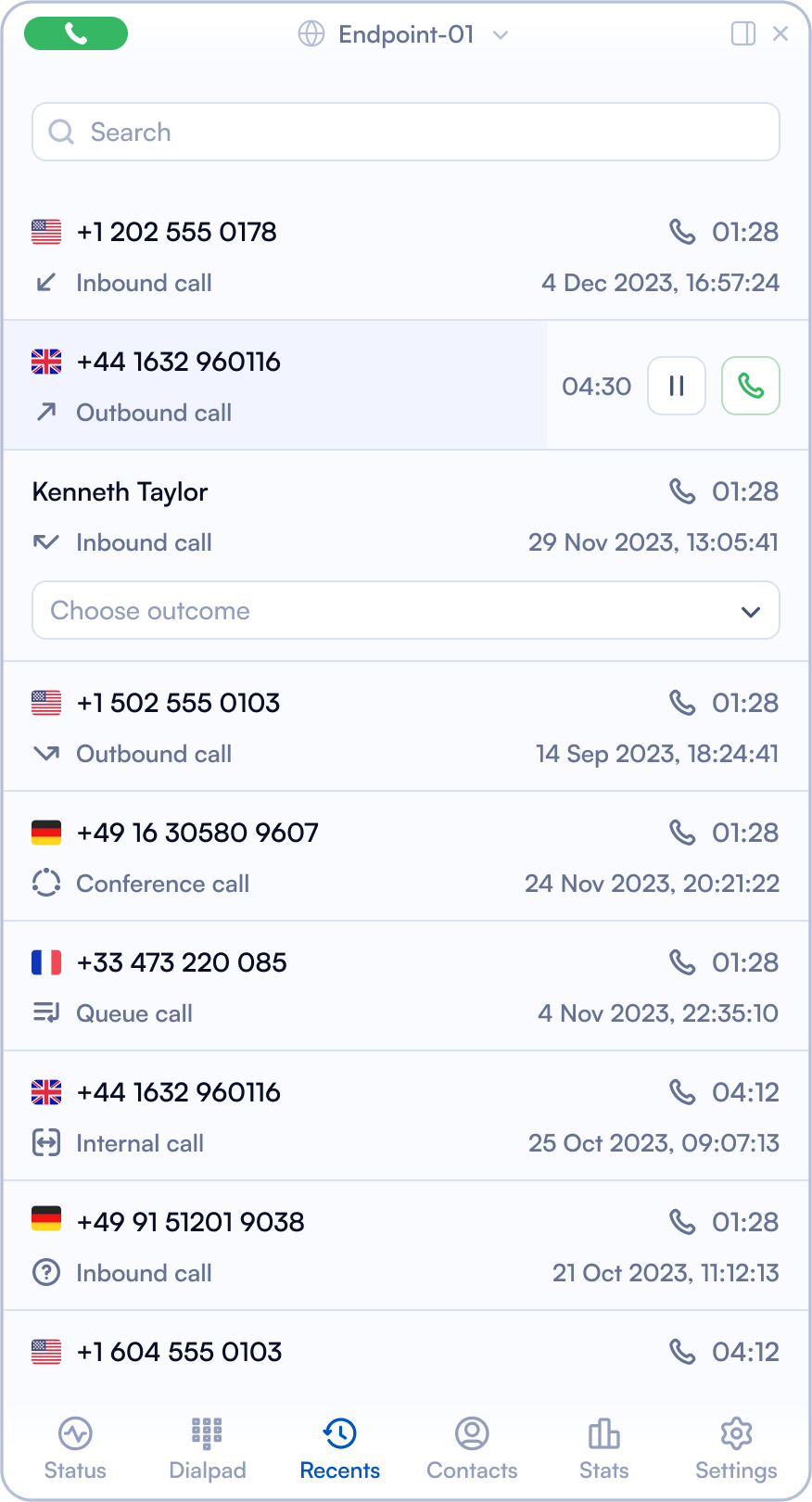
| Field | Explanation |
|---|---|
| Search | Input field to search through recent calls by number or contact name. |
| Call Icon (Green) | Indicates the option to initiate a new call. |
| Endpoint | Displays the current endpoint or device ID being used. |
| Flag Icon | Indicates the country associated with the phone number. |
| Phone Number | Displays the phone number of the recent call. |
| Call Type | Indicates whether the call was inbound, outbound, a conference call, or a queue call. |
| Call Duration | Shows the duration of the call. |
| Call Timestamp | Displays the date and time when the call occurred. |
| Pause/Play Button | Allows you to pause or resume the current call. |
| Choose Outcome | Click on the dropdown menu to select the outcome of a specific call. |
Contacts
Another tab you can see on the Webphone is "Contacts." Under this tab, you can view a list of all contacts and search by name or group.
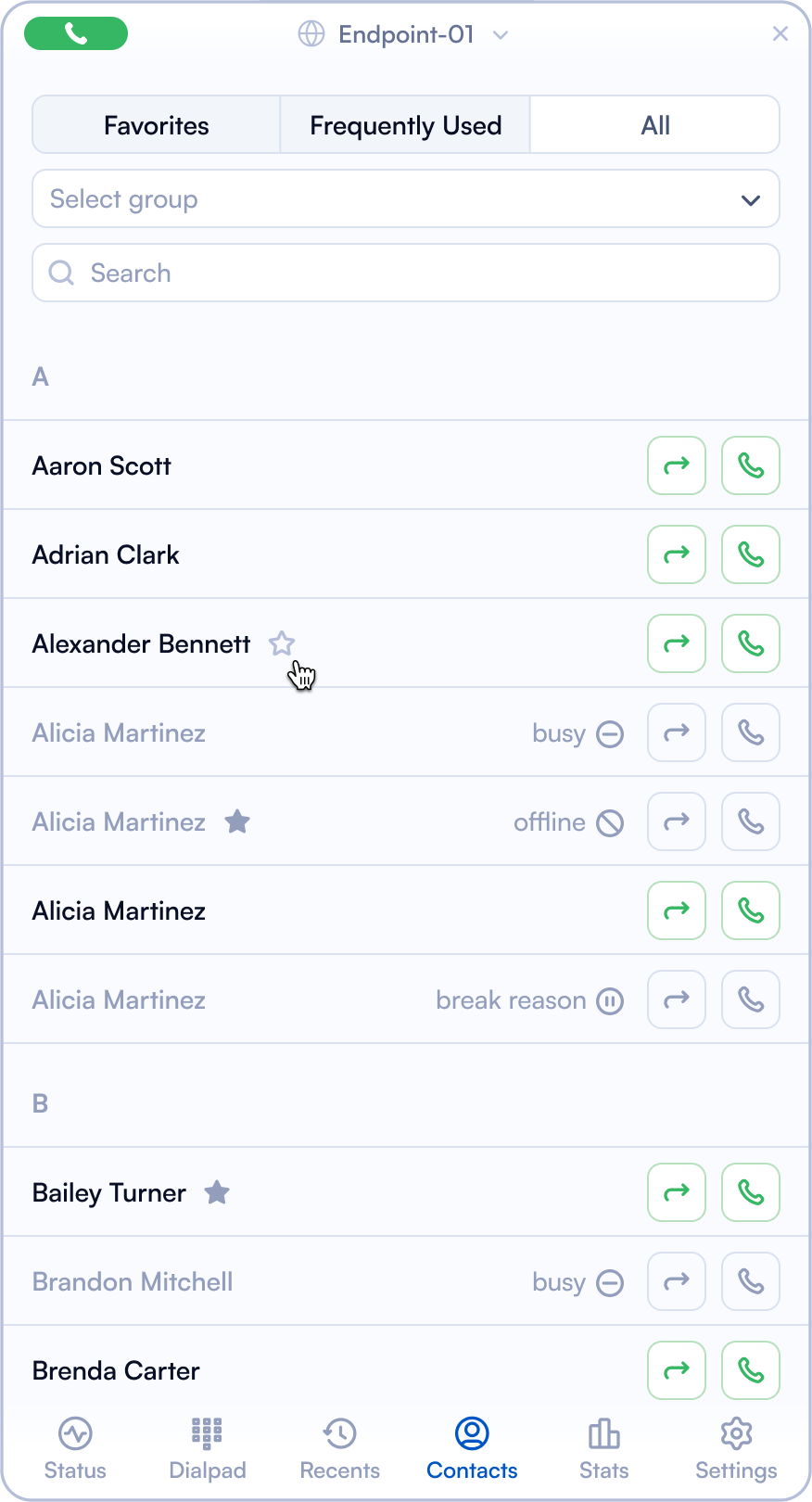
| Field | Explanation |
|---|---|
| Search | Input field to search through contacts by name. |
| Endpoint | Displays the current endpoint or device ID being used. |
| Favorites Tab | Tab to view contacts marked as favorites. |
| Frequently Used Tab | Tab to view contacts that are frequently used. |
| All Tab | Tab to view all contacts. |
| Select Group | Dropdown menu to filter contacts by group. You might want to categorise them in VIP, Providers, Clients etc. |
| Contact Name | Displays the name of the contact. |
| Star Icon | Indicates whether the contact is marked as a favorite. |
| Status Indicator | Shows the current status of the contact (e.g., busy, offline, break). |
| Forward Icon | Button to forward a call to the contact. |
| Call Icon | Button to initiate a call to the contact. |
To see more details of a specific contact, simply click on their name, and their profile will open.
Stats
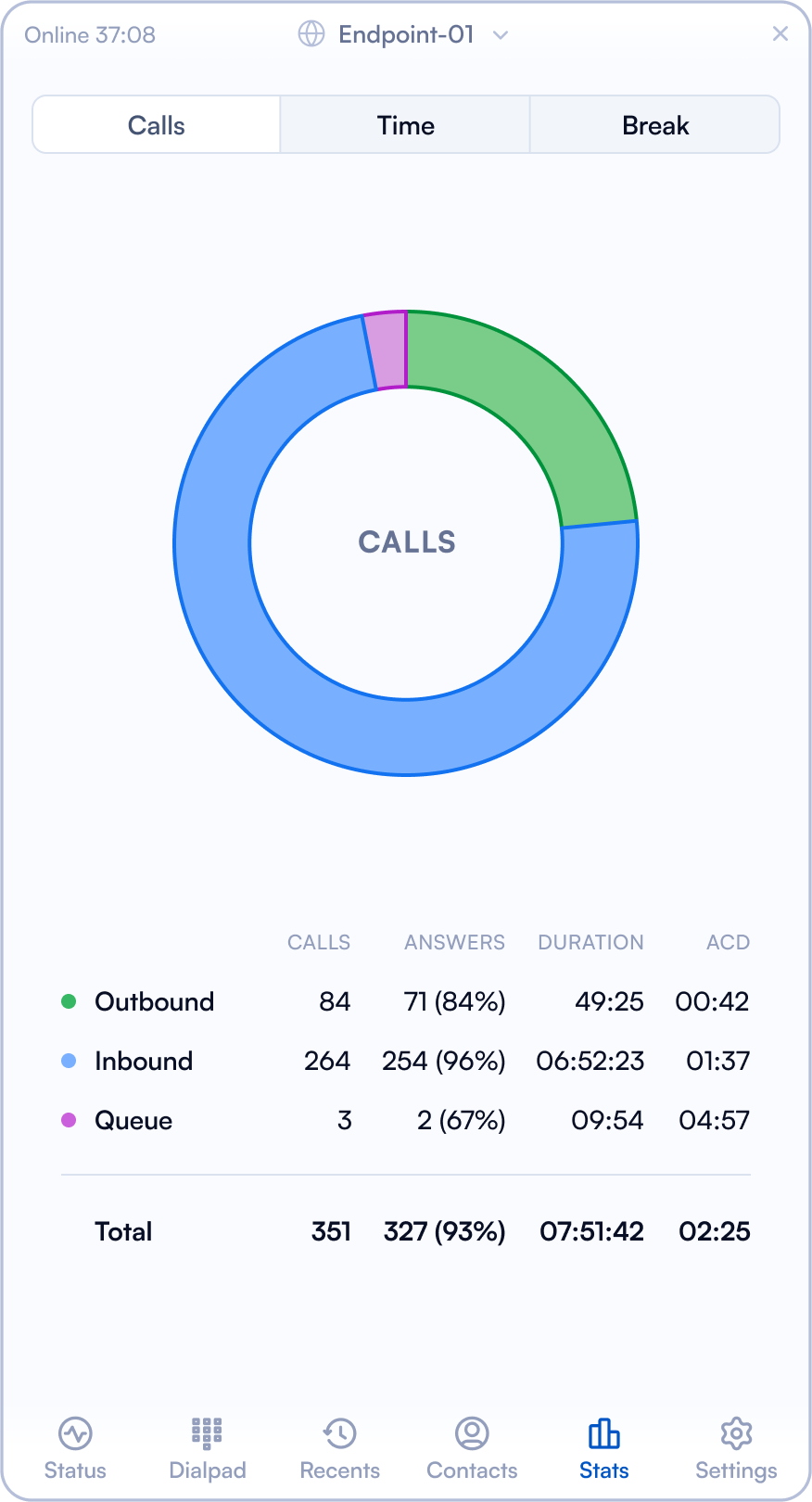
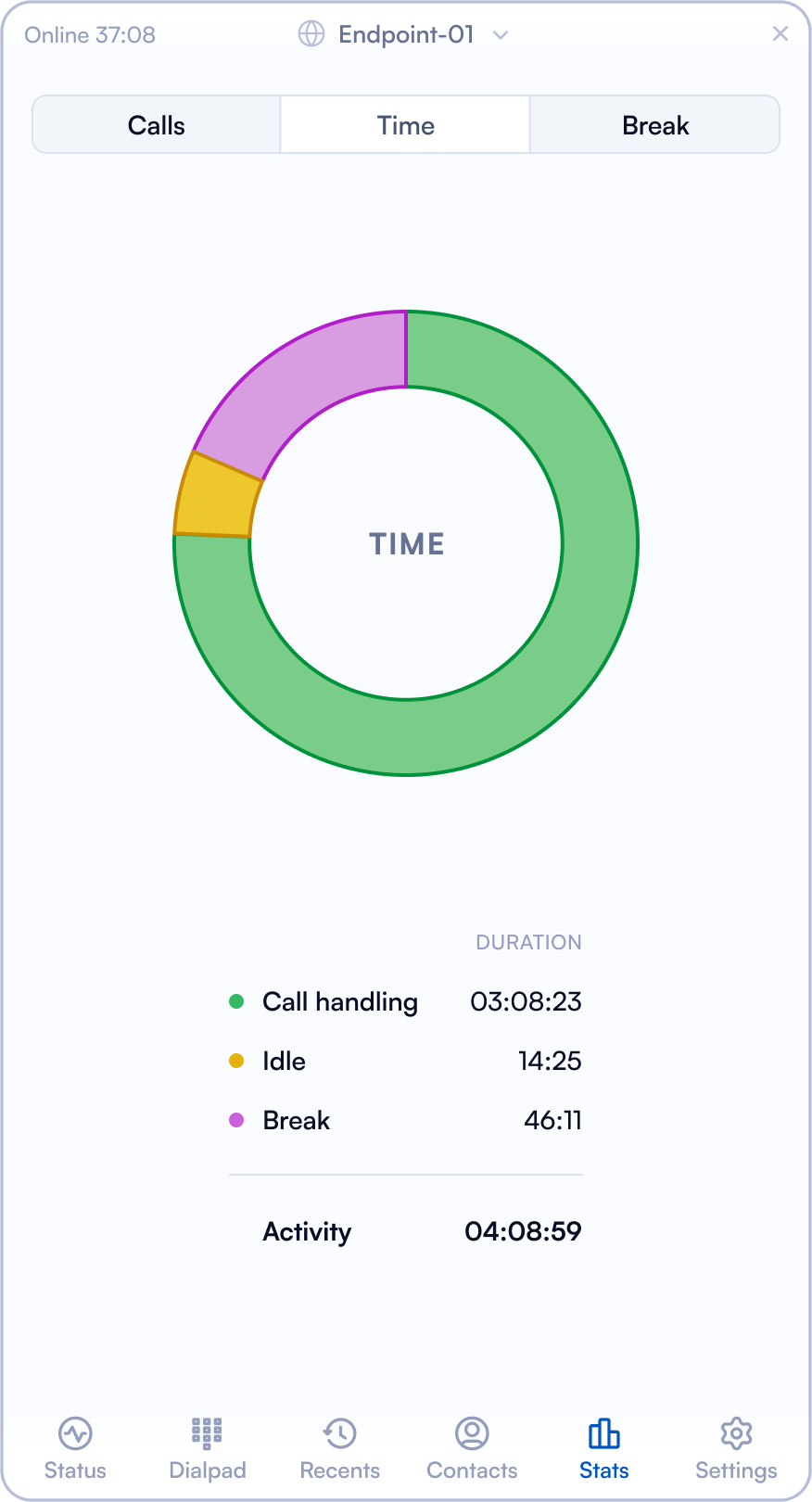
Under "Stats," you can view a brief overview of activity, including Calls, Work Time, and Breaks.
Calls tab
Under the Calls Stats tab, you will be able to see:
- The total no. of Outbound calls
- The total no. of Inbound calls
- The total no. of Queues
For each type you will see how many have been answered, what was the duration and the average call duration (ACD).
Time tab
Under the Work Time tab, you will be able to see the activities broken down by duration:
- Call handling
- Idle time
- Break time
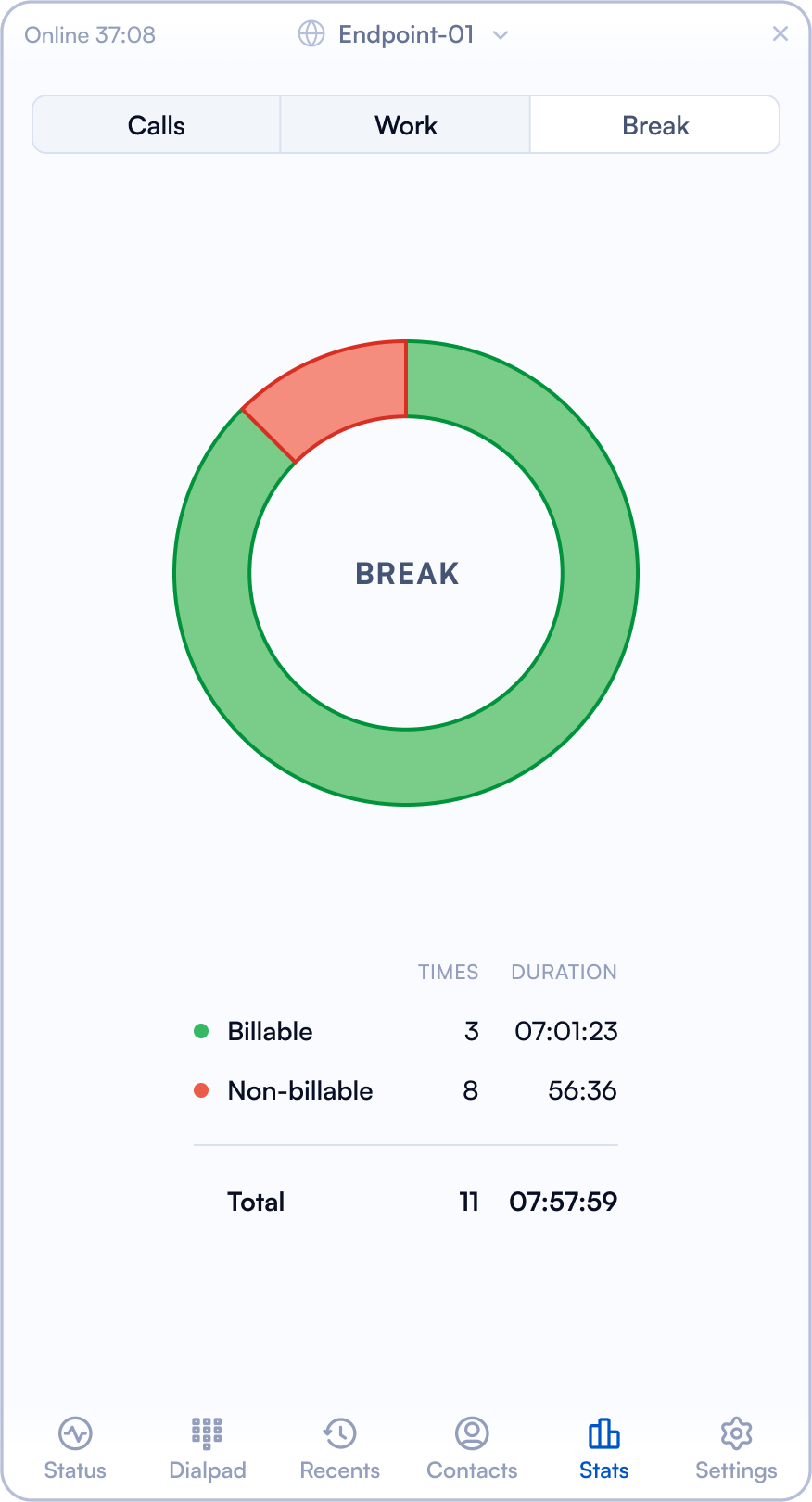
Break tab
Under the Break tab, you can see a split between Billable and Non-billable duration.
Settings
| Field | Explanation |
|---|---|
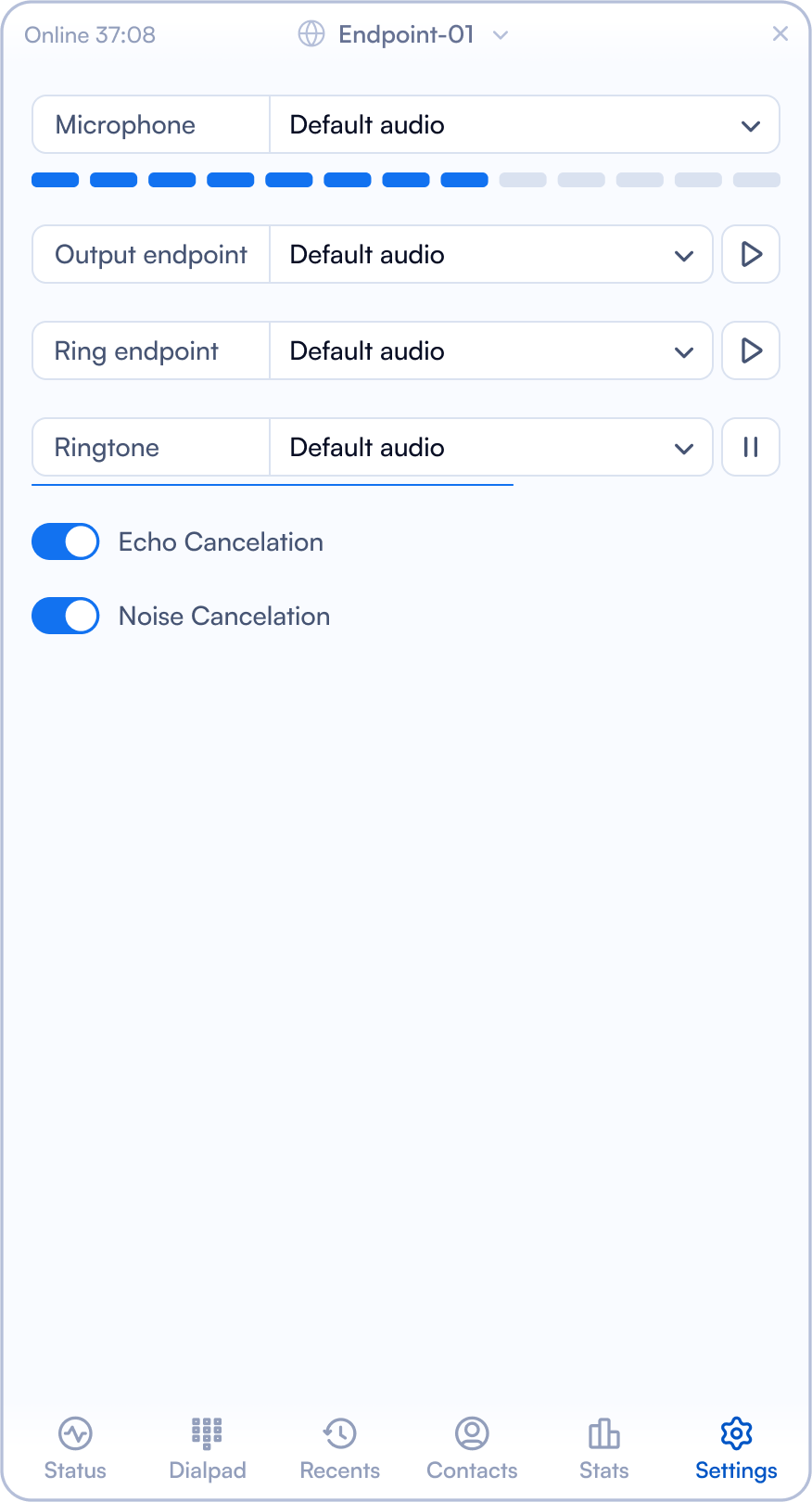
| Microphone | Click on the dropdown menu to select the microphone device for audio input. |
| Output Endpoint | Select from the dropdown menu the audio output device. Click on play button to test it. |
| Ring Endpoint | Select from the dropdown menu the audio output device. Click on play button to test it. |
| Ringtone | Select from the dropdown menu the audio output device. Click on play button to test it. |
| Echo Cancellation | Use the toggle switch to enable or disable echo cancellation. |
| Noise Cancellation | Use the toggle switch to enable or disable noise cancellation. |